The presentation timer for live events.
Run the clock from your phone. Every screen in the room shows the same countdown, to the second.
Free to start, no signup, no app.
Running. In a real room, every screen on the room link shows this same second.
The color tells the speaker what to do.
You choose when each timer turns yellow and when it turns red, and a chime can sound at each cue.
On time
White digits while the talk runs to plan. On your desk, a green lamp shows the clock is live.
Wrap up
Yellow at the moment you choose, for example two minutes out, so the speaker starts to land it.
Over time
Red for the last stretch, then the clock counts past zero, so everyone can see how far over the talk ran.
Three steps from this page to the stage.
Share one link and each screen that opens it joins the room. Every screen keeps its clock in step with the server, so they all reach zero together.
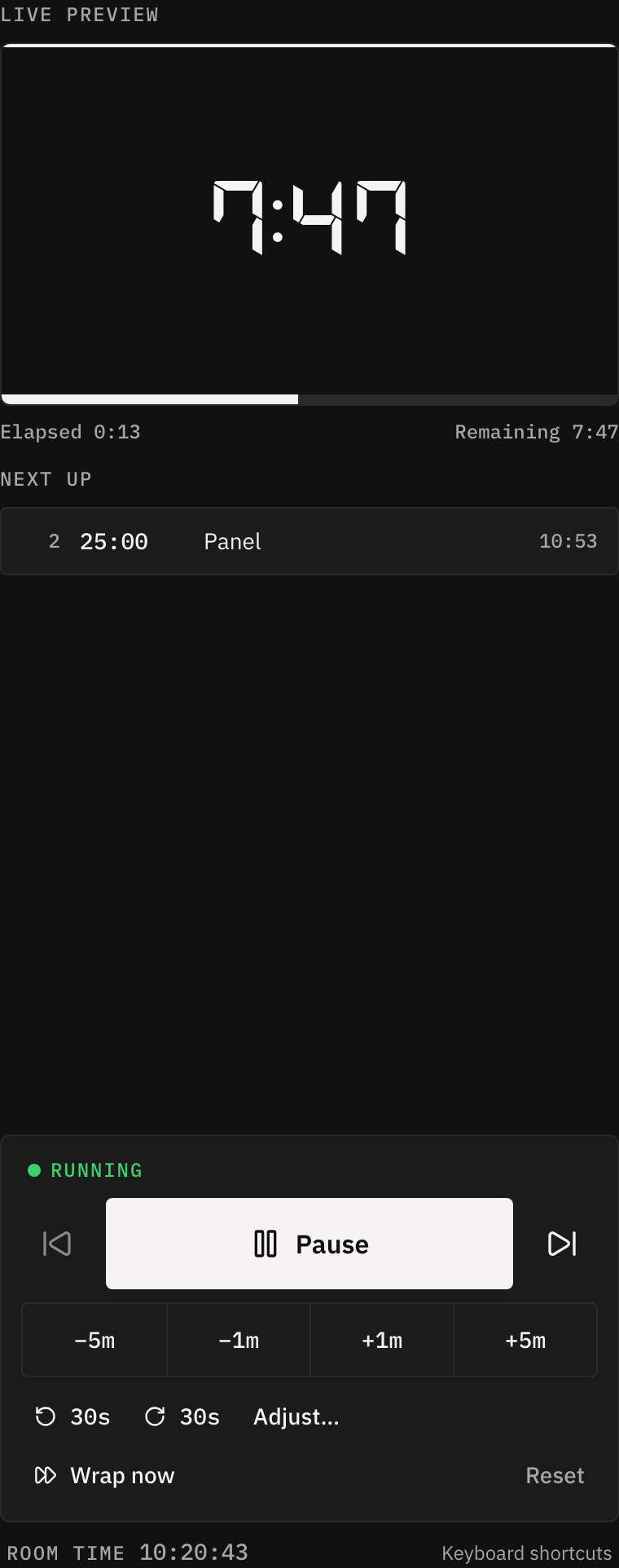
Start a timer
One press opens a room with a timer loaded and a viewer link ready to share. You do not need an account.
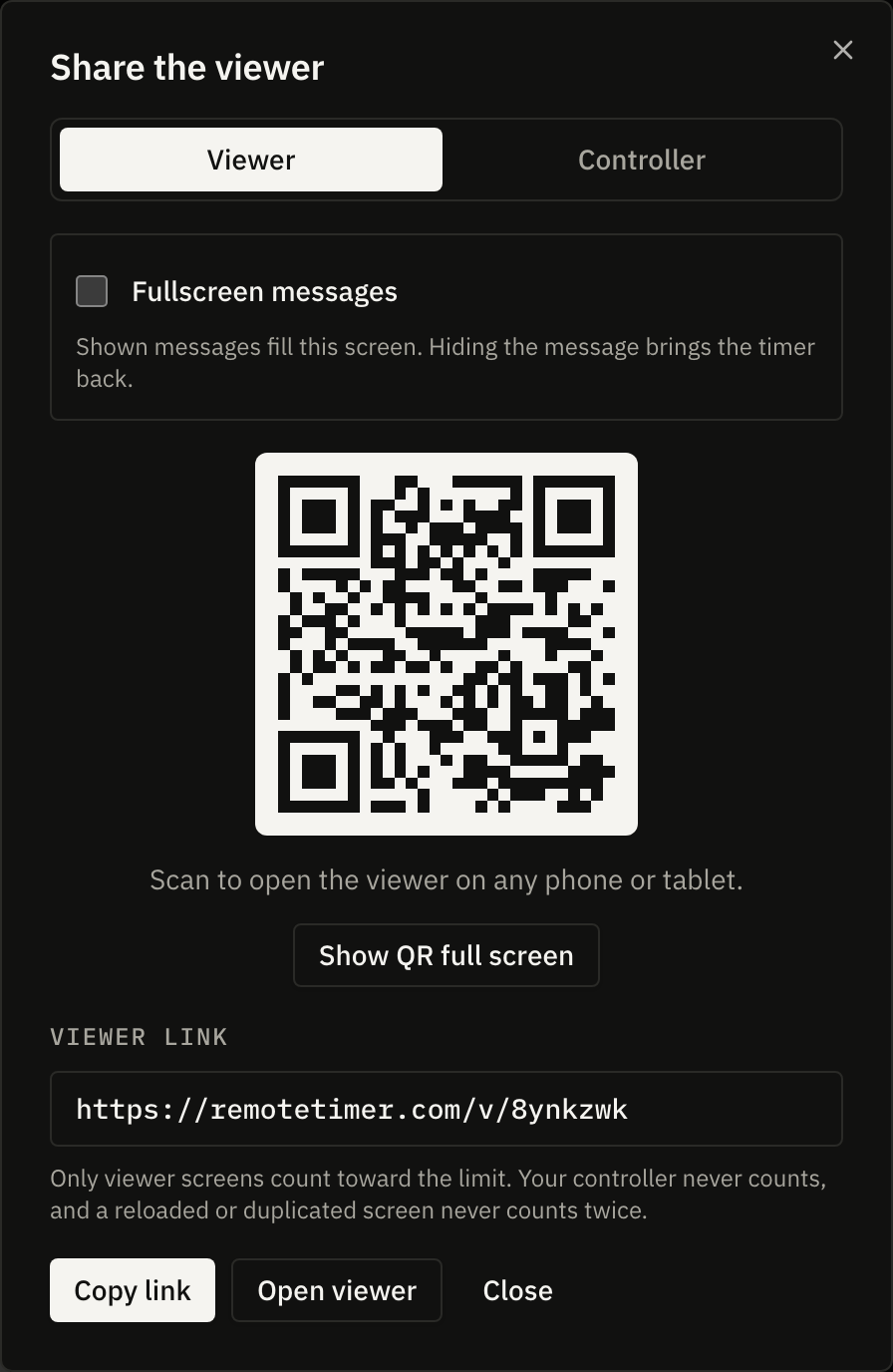
Share the viewer link
Open it on the confidence monitor, the lectern tablet or the speaker’s laptop, or scan the QR code from the share sheet.
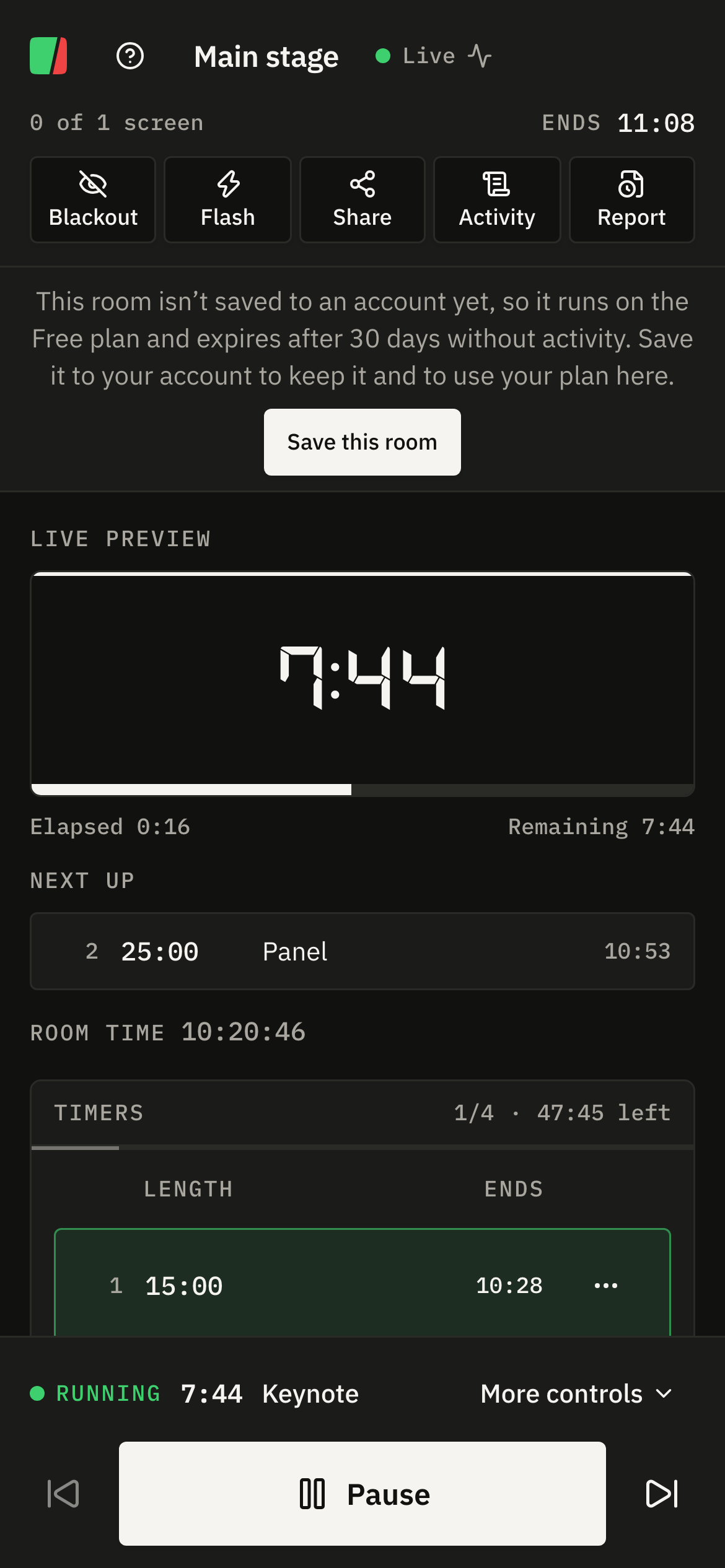
Run it from your phone
Start, pause and add time from the controller. Every change reaches every screen in well under a second.


If the wifi drops, the clock keeps counting.
Live rooms fail in the same few ways. This is what Remote Timer does in each one.
- The venue wifi drops
- Every screen keeps counting on its own synced clock. When the network returns, the screen loads the current state of the room by itself.
- A screen reloads or a laptop wakes up
- The screen syncs with the room again and shows the correct second. A reload never counts twice toward your screen limit.
- Your phone locks or the controller closes
- The timer keeps running on every screen. Open the controller again and you are back at the desk.
- A screen tries to go to sleep
- The viewer asks the browser to keep the display awake while the room is open.
- The room is full
- Your controller always gets in. Only viewer screens count toward the limit.
Run the whole show from one desk.
The controller holds the rundown, the transport and your messages. It works the same on a laptop in the booth and on the phone in your pocket.

- A rundown, not a single timer
- Line up every session with its length, title and speaker. Next and previous move the show along, and the end time of every item updates as you go.
- Change time mid-talk
- Add or take away a minute, five minutes or any amount while the clock runs. Every screen follows at once.
- Messages to the stage
- Send a short note in bold or in color, such as "Take two questions", and it appears under the countdown.
- Blackout and flash
- Clear the stage screen between sessions, or flash it to catch the speaker’s eye. Space, the arrow keys, B and F work from the keyboard.
- Activity log and as-run report
- Every start, pause and change is logged, and the as-run report compares the plan with what actually ran.
- Import from a spreadsheet
- Paste rows from a spreadsheet or pick a CSV file, and every row becomes a timer in the rundown.
The free plan has this whole desk, and you do not need an account.
Made for rooms that run on time
Conferences
Keep every session on schedule with a speaker timer and wrap-up cues that read clearly from the back row.
Houses of worship
Keep the platform on time with a quiet countdown, and send messages up without a word spoken.
Broadcast and streaming
Count into segments and hit hard outs, and go dark the moment the cameras cut.
Webinars and town halls
Give remote panels and Q&A a time cue on a second screen that the audience never sees.
Start free. Pay when the show gets bigger.
Every plan has the full controller, messages, cues and blackout. Paid plans add screens, timers and your own branding.
Need more screens? Screen packs take a Pro room up to 100 viewer screens.
Frequently asked questions
Your next show starts on time.
Open a free room in one press and share the link. You can make an account later if you want to keep the room.